Pages

Showing posts with label google. Show all posts

Wednesday, July 31, 2019

Easy Google Form Breakout and Some Tools!

I've created "digital breakouts" for a few years now. Some are super complicated and take nearly an hour to complete (and sometimes few students even complete them) and I love the idea of them, but it's just so time consuming. Even the cool "breakout boxes" are just sometimes too much work having to program locks, set up the room, etc.

So, here is my "easy Google Form" breakout method. I created this as a Business Law bellringer activity for this year.  Between the tools I used and the setup, I thought this might be helpful, or if you actually teach Business Law, feel free to use it in your class.


I didn't create this list, but someone shared this resource with lots of tools for using in breakouts (like the Jigsaw Puzzle). Check it out!

My Breakout

My Presentation Mentioned

Monday, July 17, 2017

Conditional Formatting Fun with Google Sheets! #gafe

Back in the day, I was a typing teacher. Around holidays we would sometimes do the "Typing Mysteries" where you had to spacebar so many times and then type certain letters to create "art" (ASCII art, they call it now).

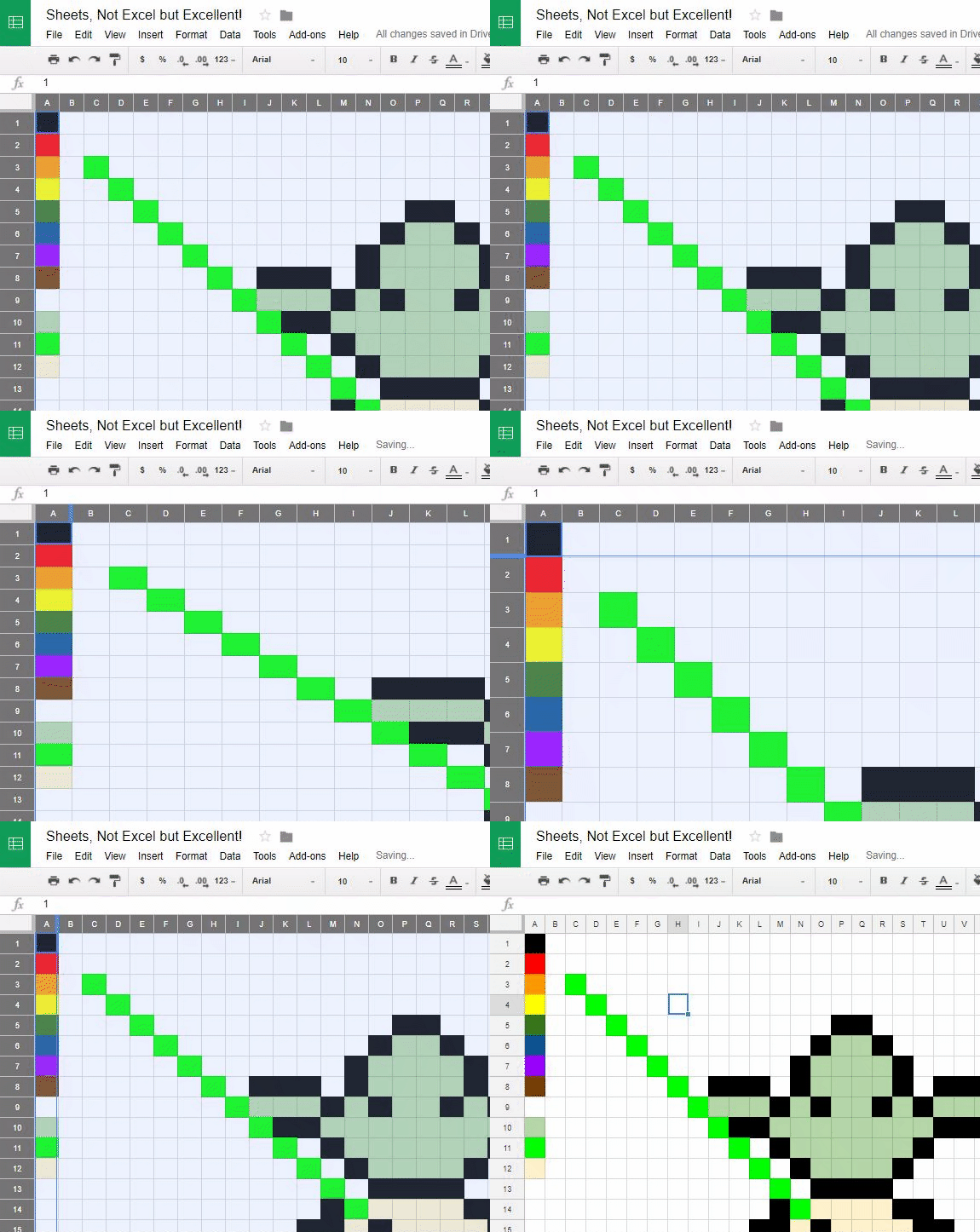
In preparing for my Google Sheets session later this week, I decided to come up with a fun way to reinforce two spreadsheet concepts-- cell references and conditional formatting. This, a pixel art constructed from conditional formatting was born!

I think students (especially middle level) would love doing this for each other. They'd need to create a legend/key for their colors (and since I wasn't sure what I was making, I have colors I don't need so if they plan further ahead, they won't need extras) and set conditional formatting for the entire spreadsheet (range 1:1000) to have that condition with that text AND fill color. In the example at right, notice I have a pale green text and fill color when the cells are equal to 10. You do this so the numbers won't show up.

Then, create the artwork! Instead of using a fill bucket and trying to click over and over, you simply type in the number for your color. I find it easiest to make the key in the first column next to the row number to keep it straight when trying to create-->


You will also need to resize the columns so they are squares, like pixels. Press the button at the intersection of the rows and columns to select all, and then drag one cell and it will resize them all. Like this:


The "mystery" page for this sheet is here! You could do this with Excel as well, but I used Google Sheets. I think it would work best in a classroom if they created their own, wrote/typed the instructions, and then switched and read it aloud to a classmate. It's easier to do if someone reads the input to you (and makes them talk to each other!). 


Monday, April 17, 2017

Google Chrome font issue... #busedu #gafe

So, numerous students this year have had a strange issue where their font on Google search results, Google forums, and other pages are light and italic. It does not follow the user to other computers, and I have been plagued all semester with students randomly having this issue.

Today, I finally decided I was going to tackle the problem head on (I'm on break and surgery tomorrow so I'm about to have a few weeks off)! I have Googled my heart out before, but I was bound and determined to get to the bottom of it.

My workflow--

1--Google. And read Google forums. Several had this issue and some recommended Chrome extensions or uninstalling Helvetica fonts. I didn't love that idea. Next.

2--I had a thought (the web design teacher in me) that maybe I should try "inspect element" on that italics font and see if I could find WHAT FONT was the issue. In that process, I isolated Roboto to be the offender. On two machines I tested that I  knew students had issues (one was light and italic and one was actually bold) I found that they each had one version of Roboto font (for one, italic and light and for the other, the dark "black" version of the font). Hmm. On a whim, I looked at a computer that worked fine... it didn't have Roboto font installed at all.

3--On the "light font" computer, I installed Roboto font and tried to figure out which (it had tons of variations) specific font it needed to display properly. Apparently it just uses "the only" Roboto font (and why Google chose that, I do not know... it doesn't roll down the font stack and sub with Helvetica or Arial or generic sans-serif. Instead, it just uses any old Roboto) that is on the machine. So, I downloaded and installed Roboto-Medium (you can grab it here).

That worked! Yay! Celebration!

I actually left off that I tried Roboto-Regular and Roboto-Medium and then cleared the cache (Control+Shift+Delete in Chrome and only check "cached images and files" and apply). That worked, too, but I don't think you actually need both or need to clear the cache if you get the "right Roboto" in the mix.

NOTE: My students do have rights to install font since we do graphics in my class, so probably if you are locked down, you won't have this issue... but you never know!

Anyway, I feel accomplished today. And, maybe someone else has had this same issue, so hope it helps you!

Thursday, January 5, 2017

Google Drive and Microsoft Office Stuff #busedu #office

So, over break, I finally got into my OneDrive (formerly SkyDrive) from Microsoft to edit a document. And, I couldn't save it! Apparently I was (oops) 25 GB over my allowed storage space. I guess that means at some point they changed the allowed amount and I just never realized. Either way, I couldn't work on the document in the cloud and had to download it and then upload it to my Google Drive. It was a test and for whatever reason, those image and numbered/lettered lists never convert well to a Google Doc when I try. **SIGH**

But, I found someone who shared info about a Google Drive plug-in that adds a ribbon in Office AND allows you to open straight from Google Drive (in Word!) and edit the DOCX file and save it right back to Google Drive, exactly like my OneDrive did. Yay! https://tools.google.com/dlpage/driveforoffice

It worked great on my laptop. Then, I returned to school.

Fail.

Not sure why. I tried it on two computers but I got an "exception" error for the Google Drive plugin. And, I can't use it at all at school. Probably a firewall restriction. I have no idea. But, I still needed to finish that test! And I was determined not to download it OR convert it to Google Drive Docs either.

So, I tried the whole "Open With" thing on my Google Drive to investigate options and ran into something called OnlyOffice. I was pretty impressed, too.

Features

ONLYOFFICE allows you to edit Office documents in browser.

  • Compatible with .docx, .xlsx, .pptx formats.
  • Works right in your Google Drive account.
  • Connects to Dropbox, Box, OneDrive and Google Drive.
  • Provides co-editing and commenting. 
Anyway, here's a snapshot:

Let me be clear about a few things. First, I like Google Docs and it's come a long way. And if I am starting from scratch, sometimes that works perfectly fine. But, I still use MS Office and not having cloud storage for it is the PITS. So, this is a great alternative for something I've already authored in Word to be able to finish and not have to convert.

Just thought I'd share. Check it out!  Have a super day!


Wednesday, June 22, 2016

New Google Sites! And My RPDC Workshop Coming Up! #busedu

A few months ago, I was asked to present at the Google Fest being held at Southeast Missouri State University next week. I have been using Google Sites for years, so I was eager to volunteer to do that one (and it's an application not as many are familiar with).

However, recently (just this month), Google announced a HUGE upgrade coming for Sites! I don't have access to it (early adopters are only Super Administrators for schools or Google for Work and I'm not one of those fancy peeps), but let me tell you. It. Looks. Awesome. Drag and drop. Responsive layouts. Don't take my word for it. Check out this video:

Yeah, I am psyched! Of course, I have to give a session using the old Google Sites next week, but I'm sure it will be fine. It's still pretty easy to use.

And, as my mastery project for my Google Chrome Classroom certification, I created a 6-part tutorial on the current Google Sites, showing how to create a student portfolio using the application. You can log in with your Google account to access if you'd like to take a peek! It's self-paced and includes "test yourself" questions along the way. Sophia is pretty cool if you've never used it.


Are you having as much fun learning this summer as I am!? :) 


Thursday, September 10, 2015

Trying to do "More Google" stuff... #GoogleEdu #teachertools

This summer, I received my Google Certified Educator level 1 certification. As I am working on level 2 now, I am trying to incorporate more "Google things" into my curriculum, either for students or as tools for myself. I saw the other day where someone used a Google Form to collect student submissions for online work (genius!); they post their email, name, URL of project, and comments or a reflection, whatever you need into a simple Google Form so the teacher doesn't have to check emails or have them write down the info.

My students had already uploaded work for grading to SchoolTube, an online video hosting site, in my Multimedia class. And, I was in the middle of moderating their submissions when I wondered if I could just enter their scores and feedback on a Google Sheet and maybe somehow email that information to them. Ideally, I would have had them do the hard work for me and enter in a form, but it was too late for that, so I just typed in their names, plugged in their student emails (only 20 kids so I looked them up quickly), put a Score column and a Notes column and graded away. Then, I hoped I'd find a solution.

I've used Flubaroo before, but I couldn't easily figure out how to mail my score and notes through that. And, after tweeting to Alice Keeler (@alicekeeler), a Google guru, I figured I'd take her advice and try Yet Another Mail Merge, another Google plug-in. Mind you, I don't really read instructions much, so I went poking away trying to figure it out.

My thoughts:

First, get into Gmail and type an email that has "mostly" what you want to say. Mine wasn't fancy. I put the assignment name and a box that said Score and Notes/Feedback. Then, I put my name and a smiley.  I didn't send the email from Gmail; it was just a "draft" in my Gmail.  Oh, and you had to put those double chevrons on either side of the "field names" from your Google Sheet. So, I put <<Score>> and <<Notes>> on there where I needed that information merged (like a Word mail merge, mostly). Fortunately, I picked a YAMM template and modified it and it had a note about that. Score.

Second, I went back to the other tab where my Google Sheet was and added the add-in for this mail merge thingy. It popped up and I had to allow some stuff. Then, it was pretty self-explanatory. I picked my "draft" from the list and put the return email and such. I added myself to the spreadsheet before I did this so I could see what the email would look like.

Here is what my students received (of course, mine is perfect, but they had much more detailed feedback on what was missing or needed improvement):


This worked great! Next time, I'll have them enter their info so I don't have to do all the work (or maybe I'll just duplicate this Sheet and use it again). You are limited to 100 emails per day on this YAMM plug-in, but I have so many different classes I teach that none of my classes are more than 50 kids, so as long as I only do one class in a day, I'm good.

I have student portfolios for another class where they submit work, so this might be another easy way to collect direct URLs for those and to easily grade those projects. I know there are other plug-ins that are rubric based, so maybe that will be my next challenge.

Anyway, hope this helps someone! :)

Wednesday, September 2, 2015

Flubaroo New Thing! Cool Google Stuff! #flubaroo

I've used Google Forms and graded with Flubaroo many times. However, I hadn't used it in the last year due to our school adopting My Big Campus. But, My Big Campus is going away and thus, I am stuck transitioning to other things this year.

So, back to trusty Google Forms I went! Of course, you can't have multiple versions of exams or shuffle responses and stuff like that, but that's okay. My most excited moment today was realizing Flubaroo had updated some things and added AutoGrade. And the best thing? It emails students their scores as they finish! WHAT?!  I hated waiting until everyone was finished to be able to tabulate grades.

I did find a nice blog of theirs that tells about some of the updates (which apparently happened in December, oops!). It's here--> http://www.flubaroo.com/blog

Other fancy changes include setting your email as the return address, changing what your "pass" score is (defaults to 70% and highlights the kiddos that don't do that well), and one that I am sure I will use SOON, which is a new feature that came out in July called "Grade By Hand" that you can set in the grading options so you can very easily look at the questions you want to hand grade, assign a value, AND enter notes for the student that will be emailed back. I'm seriously giddy right now.

The email they get looks something like this and you can choose (as always) to have the answers sent with it if you want them to be able to study. I like to use it for quizzes prior to a "big test" in my class.

So, just sharing! I love Google Forms!